
All U of A students and alumni
Student & Alumni Job Board
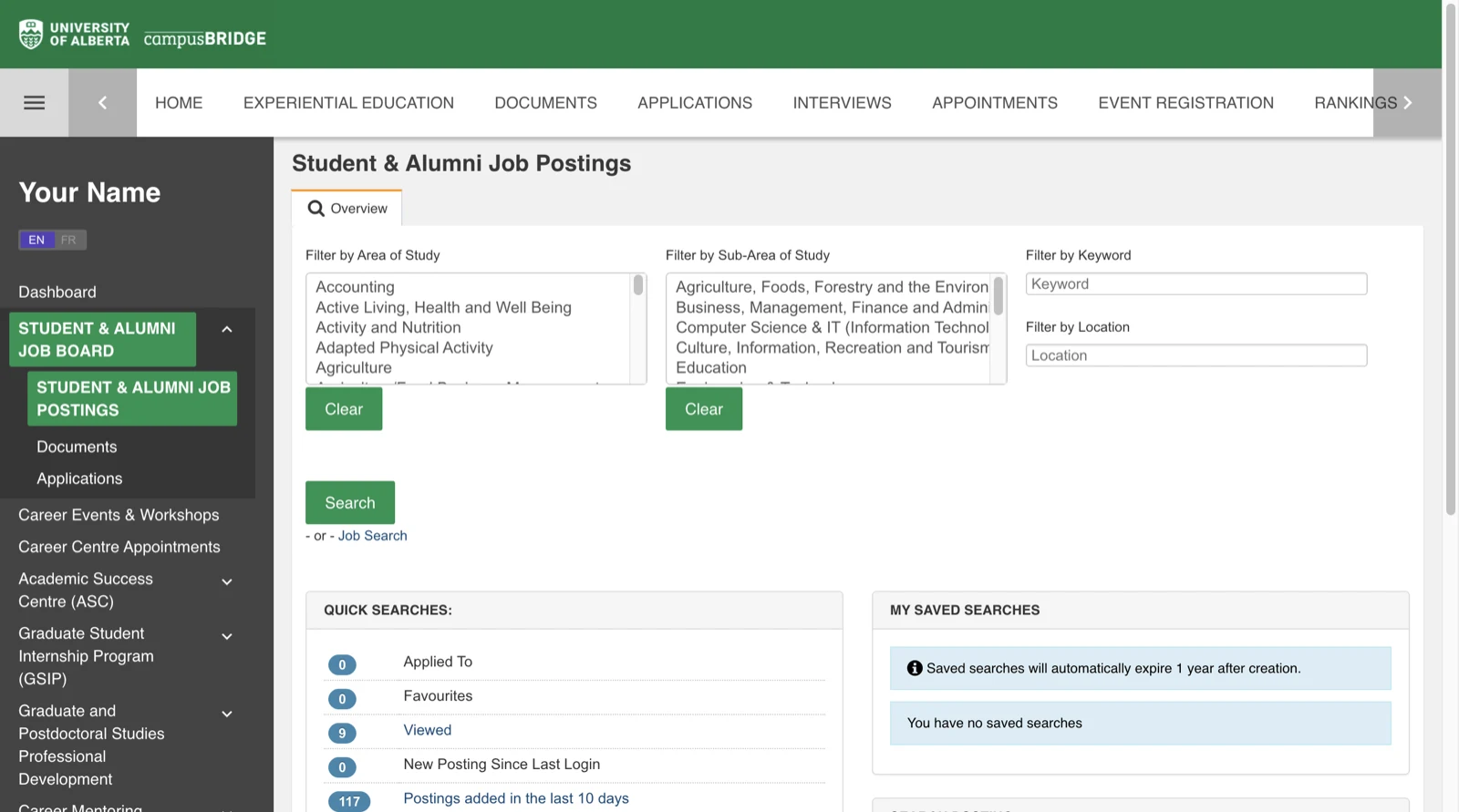
The main board. Part-time and summer student jobs, internships, work experience, and new-graduate roles, filtered by area of study.
Job Opportunities
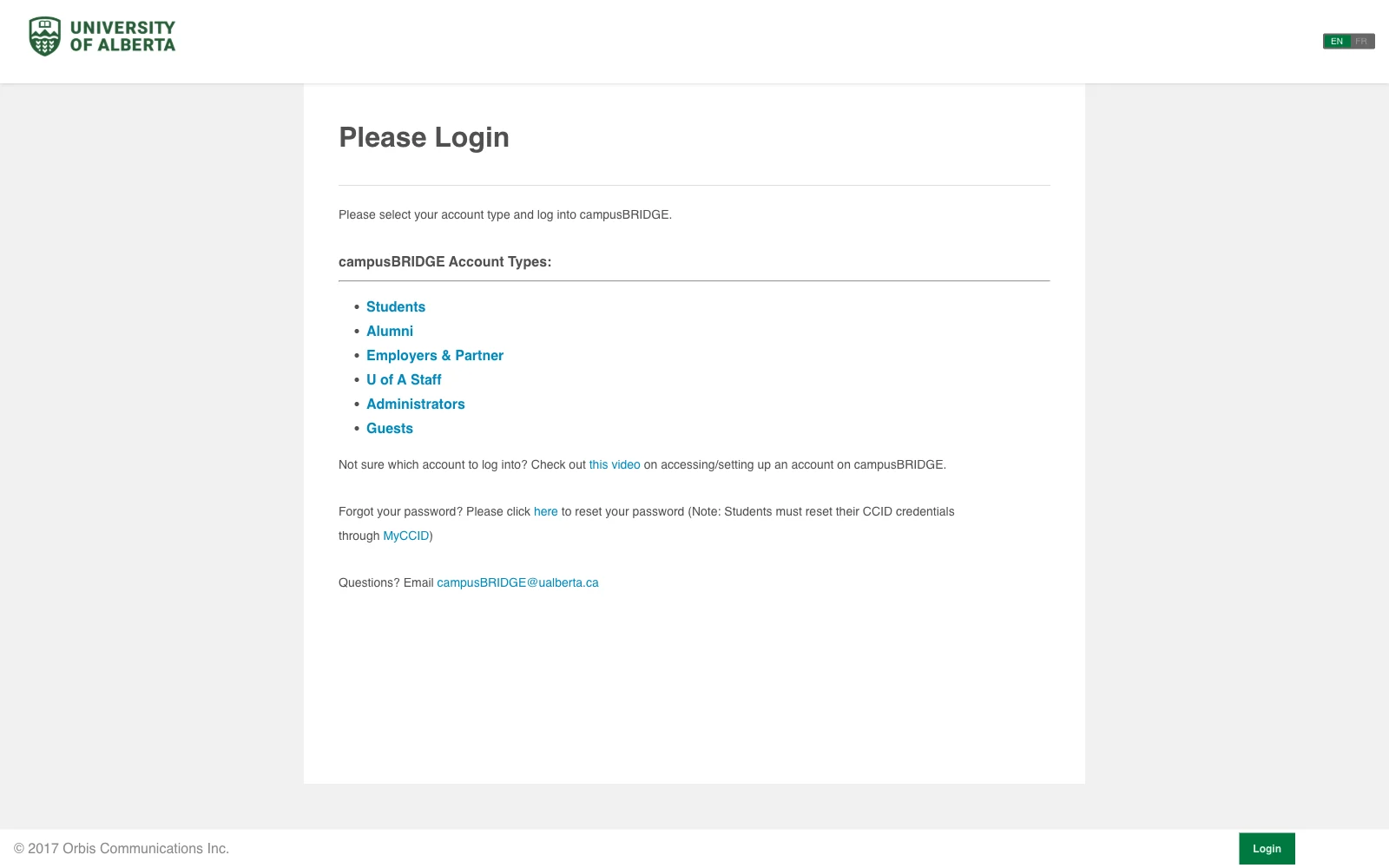
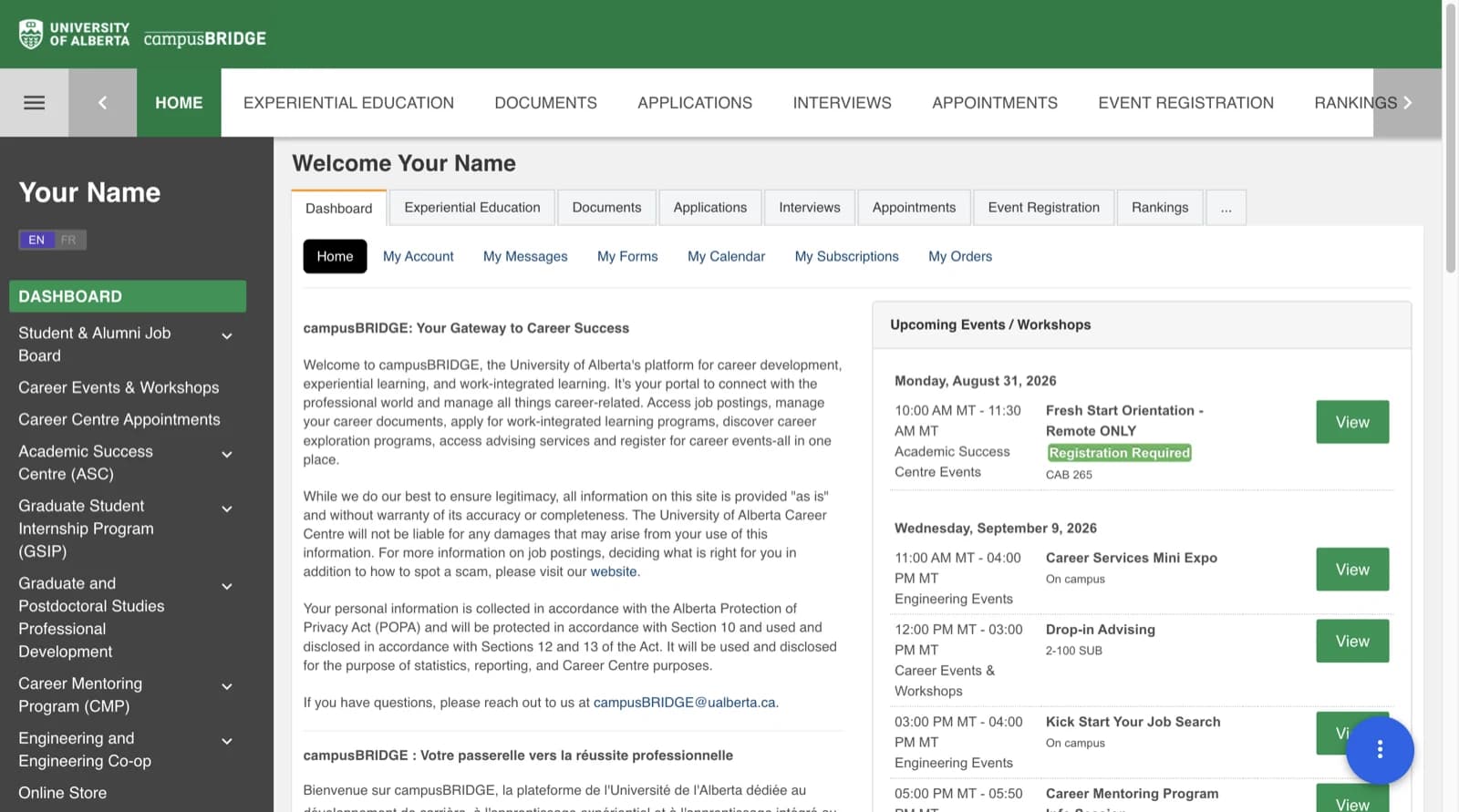
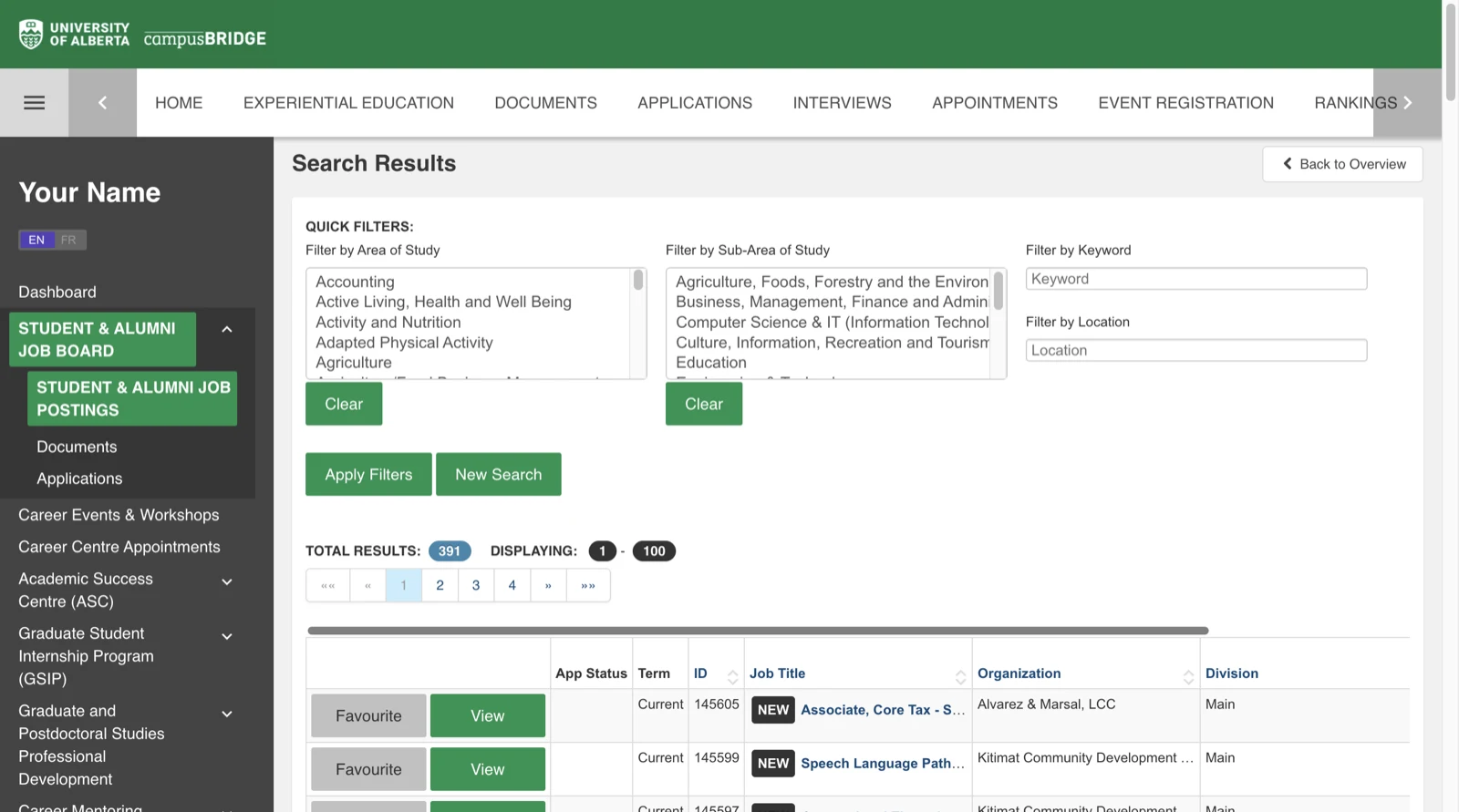
The university's own job board, walked through screen by screen: signing in, which board you get, and how to search it.
Your CCID and password, plus your two-factor method, because campusBRIDGE goes through the university's Duo sign-in.
A resume saved as a PDF.
Some postings also ask for a cover letter, a transcript, or a references list.
All U of A students and alumni
The main board. Part-time and summer student jobs, internships, work experience, and new-graduate roles, filtered by area of study.
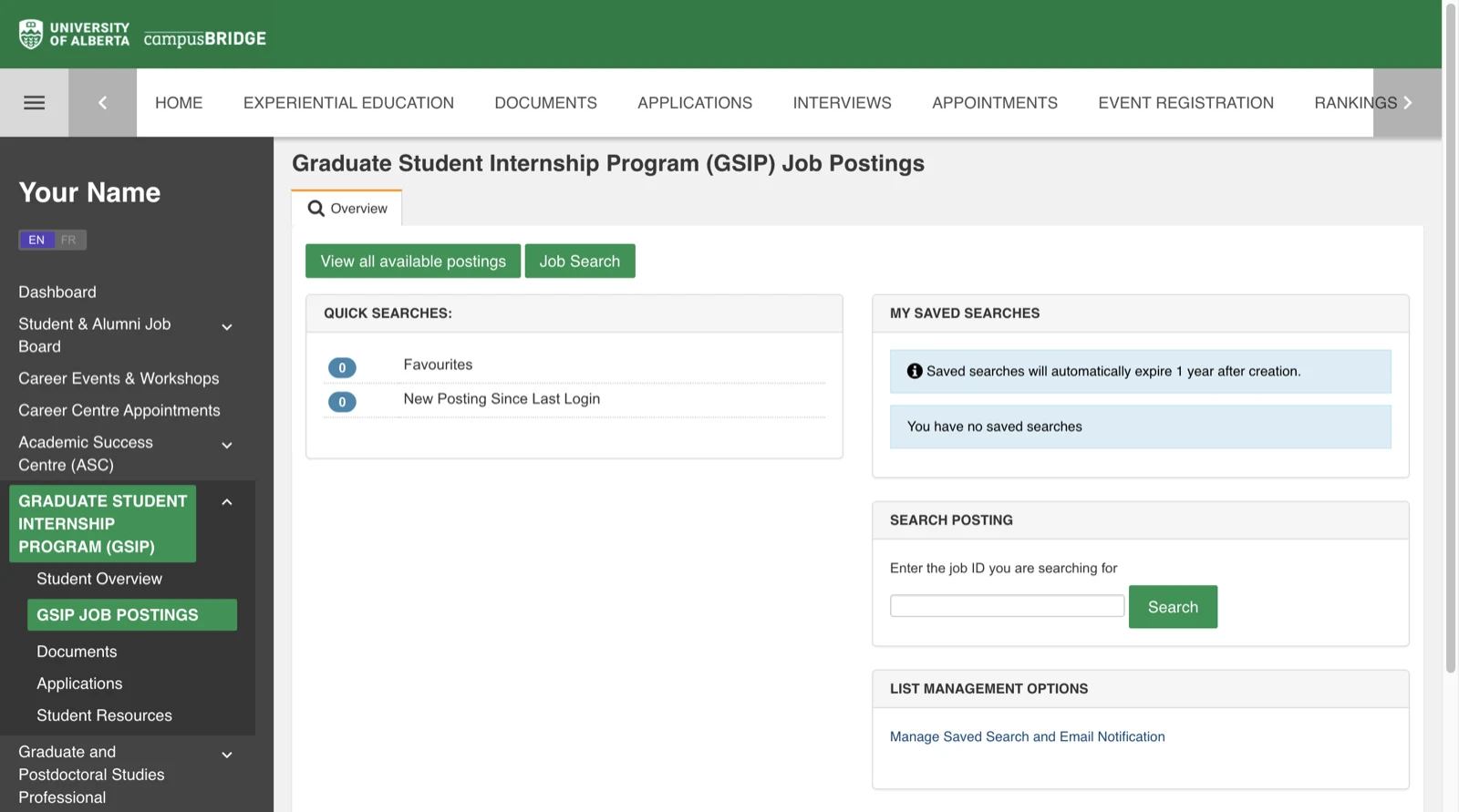
Master's and PhD students only
Paid internships with private, public, and not-for-profit employers. Undergraduates will not see this board.
From the sign-in screen to an application, with what each screen looks like.
Tip. Alumni, employers and staff each have their own account type on this page. While you are still registered, you are a Student. Picking the wrong one sends you to a login that will not accept your CCID.
Tip. The same sidebar carries Career Events & Workshops, Career Centre Appointments, and an Engineering and Engineering Co-op section. The dashboard's right column lists upcoming workshops, which are worth a look while you are here.
Tip. Do not search only for "internship". The same kind of role gets posted as summer student, research assistant, co-op student, student assistant, or work experience. Run several searches with different words rather than trusting one.
Tip. GSIP is a separate board with its own postings, documents, and applications. Anything you uploaded on the Student & Alumni side does not automatically carry over.
Tip. Check your work permit before you apply. On-campus work, off-campus work, and Co-op or internship placements have different rules for study permit holders, and a placement usually needs its own work permit.
Not every student job is on campusBRIDGE.
Every job posted by U of A departments and units, including the ones students are eligible for. No login needed to browse.
Student-friendly roles with the University of Alberta Students' Union.
Research assistantships, teaching support, and program-specific roles are often advertised locally rather than on a central board, so ask your department administrator or check its website.
About these screenshots
Screenshots were captured from a signed-in student account on August 29, 2026, with personal details replaced. campusBRIDGE changes its interface from time to time, so treat the labels as a guide rather than an exact match.